Change the account owner
The owner is the only account user who has access to all operations and receives all notifications about actions performed in the account. The owner can edit the roles of other users, as well as assign a new Owner.
Only the current account Owner can change the account Owner. After the change takes effect, the previous Owner loses access to the capabilities of this role and gets the Administrator role.
To change account owner:
- Open the Client Control Panel (https://lv.squalio.com/client/auth/sign_in) and go through authorization process.
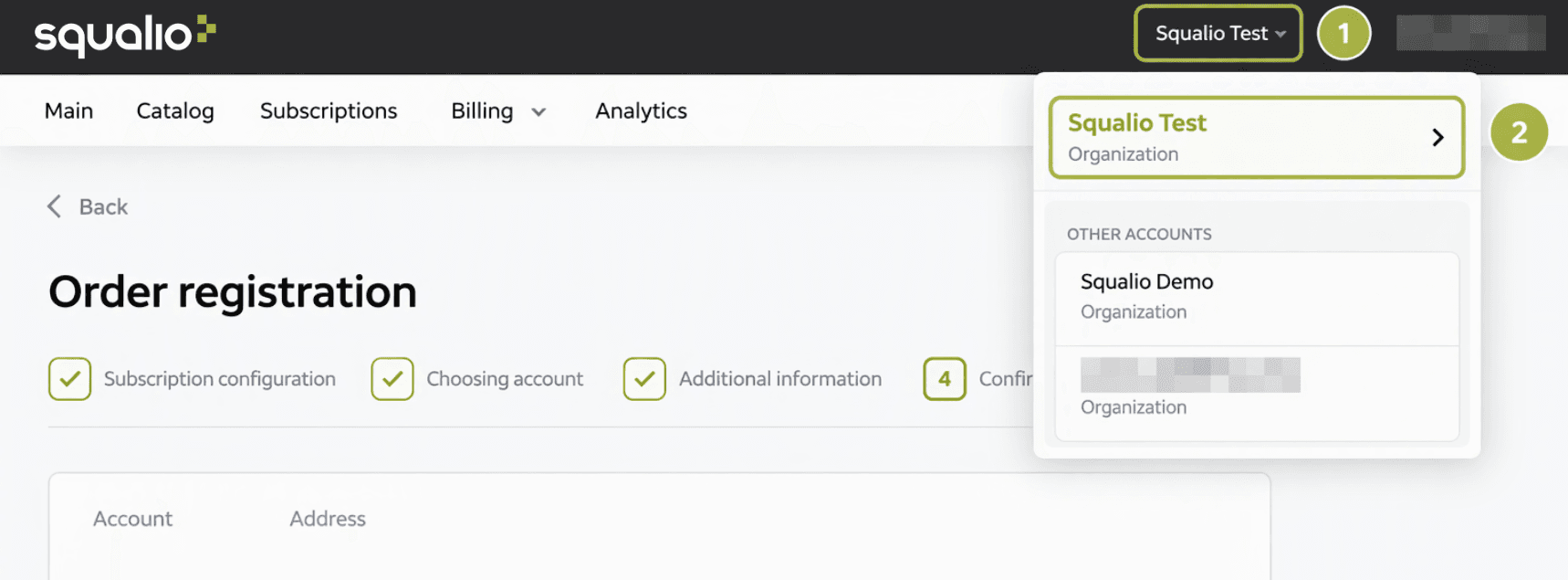
- Click om the account name at the header ➀
- Select the account to which you want to add the user from the drop-down menu ➁
- Click the button Users ➂ in the top menu. The section contains a list of users who have access to the account and their roles.
- Click on the dropdown menu ➃ of the user to whom you want to transfer the rights of the owner.
- Choose his new role – Owner ➄

- Click Confirm ➅ to approve Owner change.

You can also contact the Support Service to change the account Owner.
Squalio Market
Customer Support | |
Microsoft Technical Support | |
Client Control Panel | |
Catalog |